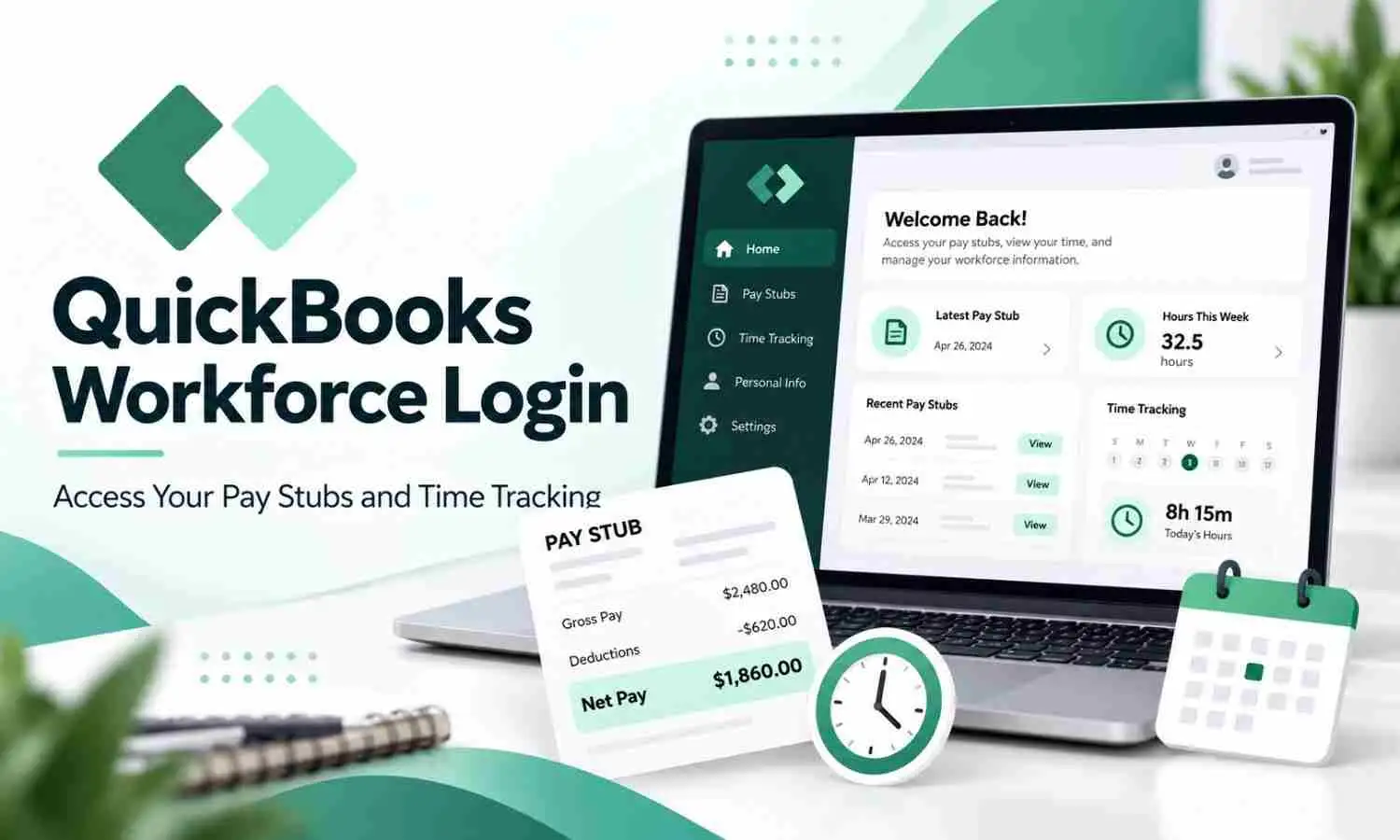
QuickBooks Workforce is an employee portal from Intuit that allows workers to access their payroll information online. Employees commonly use the QuickBooks Workforce login to check pay stubs, review paycheck details, access available tax documents, and view time tracking information shared by their employer.
Unlike the regular QuickBooks login used by business owners and payroll administrators, Workforce is designed specifically for employees. Your employer must first send an invitation before you can access your payroll information through the portal.
How to Login to QuickBooks Workforce
To access your account, follow these steps:
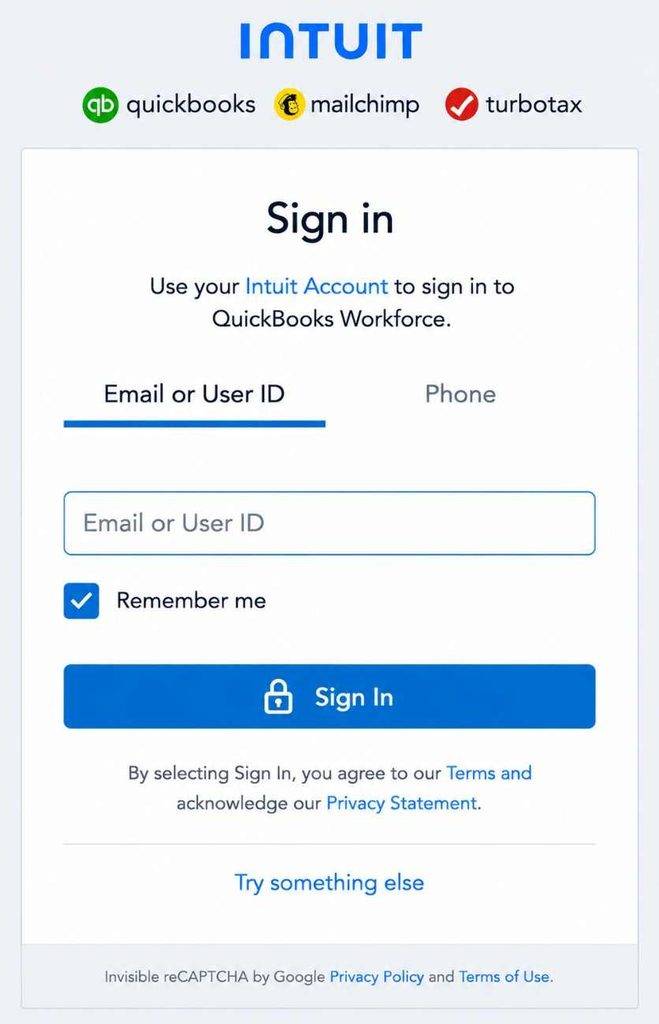
Step 1: Go to the Intuit website
Visit the official Intuit Workforce login page (https://paychecks.intuit.com/) using your web browser. Make sure you are using the correct Intuit website before entering your account details.
Step 2: Enter Your Intuit Account Information
Use the email address and password connected with your Workforce invitation. If you already have an Intuit account for other services, you may be able to use the same login credentials.
Step 3: Complete Verification and Sign In
If Intuit requests additional verification, complete the security steps and continue. After signing in, you can access the payroll information your employer has shared.
What Can You Do After Logging Into QuickBooks Workforce?
After completing your QuickBooks Workforce employee login, you can view important payroll information without contacting your employer for every request.
Employees can typically:
- View current and previous pay stubs
- Check earnings, deductions, and payment details
- Access available tax documents
- Review payroll history
- View time tracking information when enabled
For employees using QuickBooks time tracking features, searches such as TSheets Workforce login, Workforce TSheets login, and Intuit Workforce timesheet login usually relate to accessing recorded working hours and timesheet information.
Common QuickBooks Workforce Login Problems
Most QuickBooks Workforce login problems are usually related to account setup, email matching, or employer permissions rather than a problem with the Workforce portal itself. Since QuickBooks Workforce is connected to the employee’s Intuit account and employer payroll setup, even a small mismatch in account details can prevent access to pay stubs or payroll information.
1. Using the Wrong Email Address
One of the most common reasons employees cannot sign in is using a different email address than the one connected to their Workforce invitation. If your employer sent the invitation to one email address but you created or used another Intuit account, the system may not recognize your payroll access.
Make sure you are signing in with the same email address that received the QuickBooks Workforce invitation. If you have multiple Intuit accounts, try signing in with the account originally linked by your employer.
2. Did Not Receive a QuickBooks Workforce Invitation
Employees cannot usually access Workforce until their employer enables employee access and sends an invitation. If you have not received the invitation email, contact your payroll administrator or employer and confirm that your correct email address has been added to the payroll system.
3. Can Sign In but Cannot See Pay Stubs
If your QuickBooks Workforce employee login works but your pay stubs are missing, the issue may be related to payroll sharing settings or the availability of payroll records. Your employer may need to confirm that your employee profile is correctly connected and that the required payroll information has been shared through Workforce.
4. Forgot Password or Cannot Access Account
If you cannot remember your Workforce password, use the Intuit account recovery option to reset your login credentials. Avoid creating a new account unless necessary, because a new Intuit account may not be connected to your employer’s Workforce invitation.
If login problems continue after resetting your password, your employer or payroll administrator should verify that your Workforce access has been set up correctly.
Forgot Your QuickBooks Workforce Login Password?
Forgetting your QuickBooks Workforce password is one of the most common reasons employees cannot access their pay stubs or payroll information. Since QuickBooks Workforce uses an Intuit account for sign-in, you do not need to create a new Workforce account if you forget your password. Instead, you can recover your existing Intuit account and regain access to your employee portal.
Follow these steps to reset your password:
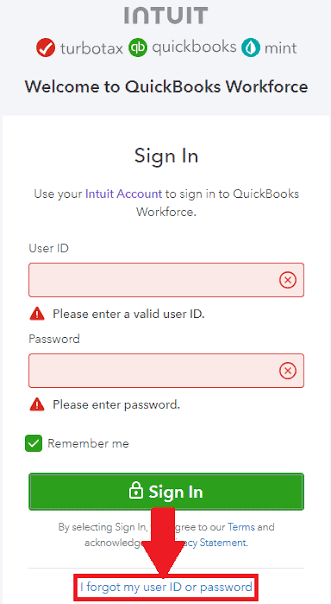
Step 1:
Open the QuickBooks Workforce login page and select the “Forgot User ID or Password” option.
Step 2:
Enter the email address, phone number, or user ID connected with your Intuit account.
Step 3:
Complete the verification process provided by Intuit to confirm your identity.
Step 4:
Create a new password and use the updated credentials to sign in again.
If you successfully reset your password but still cannot view your pay stubs or payroll information, check that you are logging in with the same email address where your employer sent the Workforce invitation. In many cases, employees accidentally create multiple Intuit accounts or use a different email address, which prevents Workforce from connecting their payroll records correctly.
If you still cannot access your account, contact your employer or payroll administrator and ask them to verify your QuickBooks Workforce access setup.
Final Thoughts
QuickBooks Workforce simplifies the way employees access payroll information by providing a secure online portal for viewing pay stubs, paycheck details, tax documents, and available time tracking information. Instead of requesting payroll records from the employer every time, employees can use their QuickBooks Workforce login to check important information whenever they need it.
The most important part of a smooth Workforce experience is using the correct Intuit account connected to your employer’s invitation. Many login issues happen because employees use a different email address, create multiple Intuit accounts, or try accessing Workforce before their employer completes the setup process.
If you still cannot access your account, contact your employer or payroll administrator. They can verify your Workforce setup and confirm that your employee profile connects correctly. Once your employer completes the setup, QuickBooks Workforce lets you access your payroll information easily without relying on manual paperwork.
Suggested Articles: