- Proforma carries eligible prior-year client information into the current tax year.
- Source Data Entry lets staff enter W-2, 1099, K-1, and similar forms outside the main return.
- Data Sharing moves information between related clients and returns.
- Accounting CS and Workpapers CS imports transfer tax-coded trial balance amounts.
- Excel imports move structured statement data without retyping every row.
- Fixed Assets CS integration transfers depreciation information into the tax return.
- Diagnostics, tickmarks, notes, and status events support review and workflow control.
- SurePrep and SPbinder can add document scanning, extraction, verification, and workpaper organization.
UltraTax CS automates tax preparation by carrying prior-year information forward, importing tax-coded balances, sharing data between related returns, calculating forms as entries are made, and flagging missing or e-file-critical information. It does not create a completely hands-free return, but it can substantially reduce duplicate entry and make preparation, review, and delivery more structured.
The largest benefit is not simply faster typing. It is the creation of a more controlled data path, from source document or trial balance to return, review, e-file, and delivery.
What Parts of UltraTax CS Actually Reduce Data Entry?
UltraTax CS reduces data entry in several different ways. Some features prevent staff from entering the same information twice. Others make the remaining entry easier to review.
| Feature | What it automates | Typical CPA use |
|---|---|---|
| Proforma | Prior-year rollover | Recurring 1040, 1120, 1065 and 1041 clients |
| Source Data Entry | Entry of common source forms outside the return | W-2, 1099 and K-1 processing |
| Data Sharing | Transfer between related clients and returns | Business K-1 flowing to an owner’s 1040 |
| Tax-code imports | General ledger and trial balance transfer | 1120, 1120S, 1065 and business schedules |
| Spreadsheet imports | Repetitive statement rows | Brokerage, contribution or expense details |
| Fixed Assets CS integration | Depreciation transfer | Business, rental and farm assets |
| Diagnostics | Missing and inconsistent data identification | Preparer and reviewer quality control |
| Status events | Return progress tracking | Received, prepared, reviewed, signed and filed stages |
Some of these capabilities are native to UltraTax CS. Others depend on additional Thomson Reuters products, third-party products, licensing, configuration, matching client IDs, and correct data locations.
How Does Proforma Reduce Repetitive Setup Every Tax Year?
Proforma is UltraTax CS terminology for rolling eligible client information from the previous year into the current-year application.
Instead of creating every recurring client from a blank return, a firm can carry forward relevant client data and prior-year input. This gives the preparer a starting structure that can be compared with the new year’s documents.
How to proforma client data
Inside the current-year UltraTax CS application:
- Select Utilities.
- Select Proforma.
- Confirm the To data location.
- Select Clients.
- Use the Focus options to filter the client list.
- Select the clients to roll forward.
- Verify the prior-year drive and data path.
- Select Proforma and review the progress window.
Use case:
Consider a recurring 1040 client who had wage income, investment accounts, a rental property, estimated payments, dependents, and a state return last year. The preparer does not need to rebuild that return structure manually. After proforma, the preparer can:
- Press F8 to view prior-year data.
- Compare the current-year documents with prior-year input.
- Investigate income sources that existed last year but are missing this year.
- Update only the information that changed.
UltraTax CS marks fields with prior-year information but no current-year entry using missing-data indicators. This helps turn the prior return into a review checklist rather than blindly copying it forward.
How Does UltraTax CS Source Data Entry Work?
UltraTax CS Source Data Entry, commonly called SDE, provides simplified screens for entering common tax documents without opening the complete client return.
It is included with an UltraTax CS license and can be useful for seasonal staff, interns, offshore teams, or data-entry personnel who do not need access to every part of the tax return. Supported forms include W-2, W-2G, several 1099 forms, Schedule K-1, SSA-1099, and other retirement-related forms.
The Source Data Entry process
- Open SDE from its desktop icon or select Utilities > UltraTax CS Source Data Entry.
- Select the source form.
- Enter the information from the client document.
- Review the entered values.
- Select Export to UltraTax CS.
- Open the corresponding client in UltraTax CS.
- Review the Data Sharing Pending Updates window.
- Accept the new data, retain the existing value, or postpone the update.
- Review the imported amounts before completing the return.
Imported SDE amounts appear in blue. Firms can also review the transfer through Utilities > Data Sharing > Imported Fields Listing.
How does SDE match data with the correct client?
SDE uses identifying information such as the SSN, TIN, or EIN to locate a matching UltraTax CS client. Accurate identifiers are therefore essential.
For example, a staff member can enter a W-2 in SDE using the taxpayer’s SSN. When the preparer opens that taxpayer’s UltraTax CS return, the software presents the pending information for review and acceptance.
What SDE does not do?
SDE is not the same as optical character recognition or scan-and-populate technology. A staff member still enters the values shown on the document.
SDE should also not be used where the same information is already coming from another data-sharing source, such as Accounting CS or a related business return. Overlapping transfers can create confusion about which source should control the final amount.
Can UltraTax CS Import QuickBooks Data Directly?
No. UltraTax CS does not directly import a QuickBooks company file.The supported workflow is generally:
QuickBooks > Accounting CS > UltraTax CS
QuickBooks balances or transactions can be imported into Accounting CS. After adjustments and tax-code assignments are completed, the relevant balances can be transferred into UltraTax CS. An Excel-based import can also be used for certain structured data.
How Are Trial Balance Amounts Imported from Accounting CS?
UltraTax CS can import general ledger balances from Accounting CS by using tax codes. A tax code tells UltraTax CS where an account balance belongs in the tax return. The software summarizes related accounts, applies whole-dollar rounding, and transfers the resulting values to the corresponding input screens.
Preparation inside Accounting CS
Before transferring the balances, the firm should:
- Confirm that Accounting CS and UltraTax CS use the correct entity type.
- Assign appropriate tax codes to the chart of accounts.
- Add unit numbers when amounts must go to different activities.
- Review the Tax Code Groupings, Tax Code Worksheet, and Tax Reconciliation Worksheet.
- Correct missing or invalid codes before importing.
Import steps inside UltraTax CS
- Select Setup > User Preferences.
- Open the File Locations tab.
- Select CS Accounting Products.
- Verify the Accounting CS client-data location.
- Open the UltraTax CS client.
- Select Utilities > Accounting CS (Import).
- Select one or more accounting clients.
- Choose the data to import.
- Select Import, review the results, and select Done.
The preparer can choose between:
- Adjusted Trial Balance: Imports adjusted balances from Accounting CS.
- Federal Tax Trial Balance: Imports tax balances defined in Accounting CS.
- Detail: Lists individual account descriptions and amounts.
- Summary: Combines the applicable accounts into one description and total.
Accounting-firm use case
Suppose an individual client owns a laundromat, dry-cleaning business, and tailoring service. Each business may be maintained separately in the accounting application, while all three must flow into separate Schedule C units in the owner’s 1040 return.
The firm can assign the appropriate tax codes and unit numbers to each business. UltraTax CS can then direct each balance to the correct Schedule C activity rather than requiring the preparer to type three separate trial balances. Thomson Reuters documents this type of multiple-unit workflow as an example of tax-code-based importing.
Important import control
Certain balances should be excluded where UltraTax CS tracks them separately. Thomson Reuters specifically identifies areas such as depreciation, capital gains, Section 179 expense, retained earnings, partner capital, and some fund balances as areas that can create conflicts if imported without proper exclusion codes.
This is why trial balance automation still requires tax knowledge. A technically successful import is not necessarily a correct tax return unless the account mapping is reviewed.
How Can Excel Reduce Statement-Level Data Entry?
UltraTax CS can import spreadsheet information into statement windows. This can be useful when the firm receives a structured worksheet containing many rows, such as expense details, contributor information, rental information, or other statement-level data.
Spreadsheet import process
- Open the appropriate client and statement window.
- Select Statement > Import Spreadsheet.
- Choose the Windows Clipboard or a Microsoft Excel document.
- Locate the file or select it from FileCabinet CS.
- Choose the required worksheet.
- Create a column mapping or use an existing mapping.
- Validate the imported data.
- Correct or omit invalid values.
- Append the data, replace all existing data, or replace only previously imported data.
Imported rows display an Excel icon, helping the preparer identify their source. UltraTax CS also validates formats such as taxpayer, spouse, or joint codes, percentages, and Social Security number structures before completing the transfer.
Reusable mappings can make this especially useful for firms receiving similarly formatted worksheets from the same bookkeeping department or client group each year.
How Does Data Sharing Work Between Related Returns?
Data Sharing allows information entered in one UltraTax CS client or related CS application to be made available to another matching client.
Matching is commonly based on identifiers such as the SSN or EIN. Shared information can include general client details as well as financial information from related entities.
Example: transferring a business K-1 to a 1040
A firm prepares an S corporation, partnership, or fiduciary return and also prepares the owner’s or beneficiary’s individual return. The general workflow is:
- Complete the originating 1065, 1120S, or 1041 return.
- Print or print-preview the originating return.
- Close the originating client so the sharing files are created.
- Open the receiving 1040 client.
- Open the applicable K-1 input screen.
- Identify whether the K-1 belongs to the taxpayer or spouse.
- Enter the originating entity’s EIN.
- Review and accept the pending K-1 information.
If the business return changes, the firm must print-preview or print it again to refresh the available sharing information.
Why this matters in a CPA firm?
Without data sharing, the same staff member may prepare the entity return and then manually re-enter every K-1 amount into the owner’s return. With data sharing, the values can be presented for acceptance in the receiving return.
The preparer must still confirm basis, passive activity treatment, state information, limitations, and other items that may not transfer in the same way as the face of the K-1.
How Does Fixed Assets CS Integration Simplify Depreciation?
When Fixed Assets CS and UltraTax CS are correctly integrated, depreciation information can transfer into the UltraTax CS asset module.
The client IDs must correspond, and both applications must point to the appropriate depreciation data location. In most cases, the information is shared automatically. A manual transfer can also be initiated from Utilities > Fixed Assets CS (Import).
CPA use case:
A CPA firm manages a client with:
- Multiple rental properties
- Vehicles
- Office equipment
- Prior-year assets
- Current-year purchases
- Disposals
- Federal and state depreciation differences
The asset information can be maintained in Fixed Assets CS rather than recreated inside the tax return. UltraTax CS can then use the transferred asset records when calculating the relevant depreciation-related forms and schedules.
This reduces duplicate asset setup, but the preparer should still review placed-in-service dates, business-use percentages, elections, methods, lives, prior depreciation, disposals, and state adjustments.
How Do Real-Time Calculations Help Preparers?
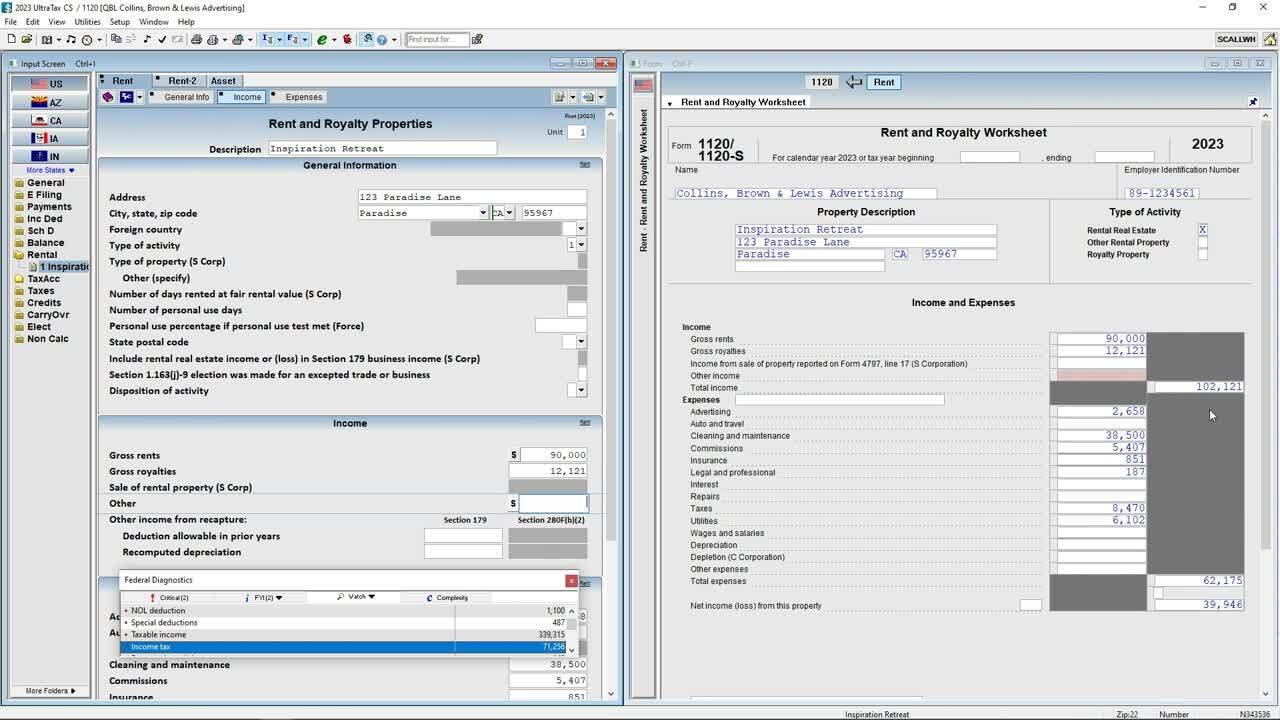
UltraTax CS recalculates the return as data is entered and displays the effect of entries in the tax forms and related schedules. Its interface can show input screens, form output, and diagnostics in synchronized views.
This is useful when evaluating questions such as:
- Did a new K-1 create additional tax or a loss limitation?
- How did an estimated payment affect the balance due?
- Did a depreciation election alter taxable income?
- Did a state adjustment create a different result from the federal return?
- Did an override change a calculated or transferred amount?
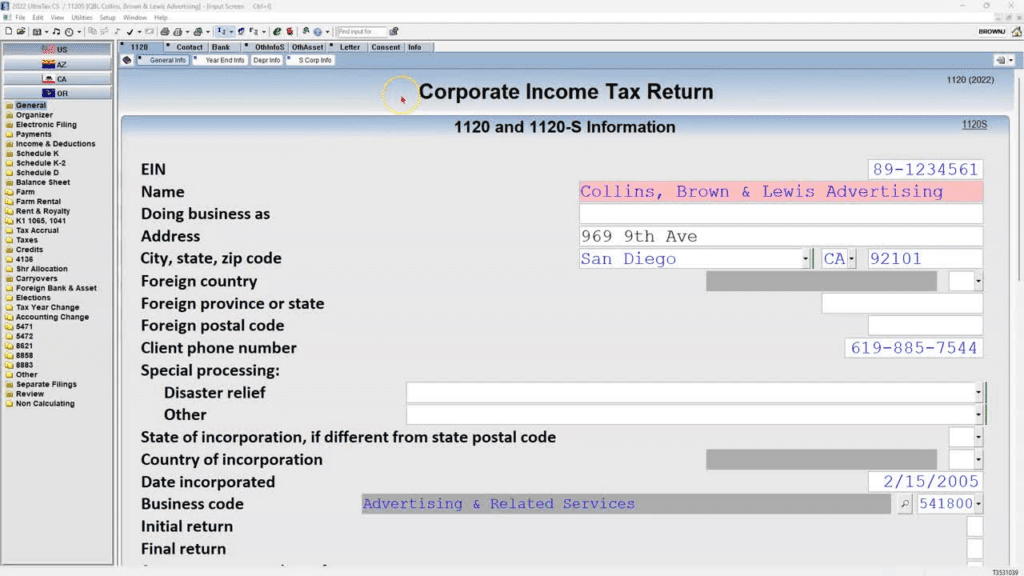
UltraTax CS also uses different visual treatments to distinguish manually entered, calculated, transferred, or overridden information. This helps reviewers understand where a number originated.
How Do Diagnostics Improve the Review Process?
Diagnostics do not replace professional review. They help organize it. UltraTax CS can identify critical issues, e-file-related issues, missing data, overrides, and other conditions that require attention before the return is completed or transmitted.
Missing-data diagnostics
When a field contained data in the prior year but has no current-year entry, UltraTax CS can display blue corner indicators and place the item in the To Do diagnostics.
The preparer can:
- Enter the missing information.
- Acknowledge one missing field.
- Acknowledge all missing items on a screen.
- Restore an acknowledged item to the active list.
- Review which user acknowledged the item and when.
This is more useful than a generic “return incomplete” warning. It tells the preparer where a prior-year item has not yet been addressed.
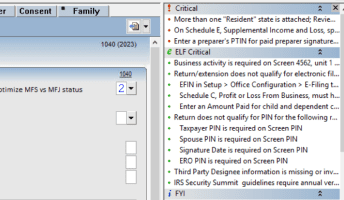
Event-driven and impromptu diagnostics
Firms can also create workflow-based diagnostics. For example:
- Create a “Final Review” event that remains outstanding until logged.
- Create a “Call Client” event when clarification is required.
- Add a client-specific To Do item directly from an input screen.
These items can appear in the Diagnostics window and on diagnostic reports, giving the firm a clearer record of unresolved work.
How Can Tickmarks and Field Notes Improve Collaboration?
Reviewers can add tickmarks or field notes to individual form lines and input fields.
A tickmark can indicate that an amount has been reviewed, agreed to a source document, or requires attention. A field note can record a question, adjustment explanation, or review comment. Firms can assign different colors and create custom tickmarks in user preferences.
To add one:
- Right-click the relevant form line or input field.
- Select Field Note > Add/Edit Field Note.
- Choose Note or Tick.
- Select a color.
- Enter the comment when required.
- Save the item.
Tickmarks and field notes do not print on the client’s return. They remain internal review aids.
How Do Status Events Help Manage a Tax Workflow?
The UltraTax CS Client Status System records application-generated events and firm-defined workflow events.
A firm can create statuses such as:
- Documents received
- Waiting for client information
- Preparation complete
- Ready for reviewer
- Review notes outstanding
- Form 8879 sent
- Signature received
- Ready to e-file
- Accepted by taxing authority
Status events can be logged for one client or multiple clients. Firms can then sort client lists, produce status reports, use Data Mining to identify clients with or without a particular event, and integrate selected events with Practice CS tasks or projects.
This addresses a different kind of automation. It does not populate tax fields, but it reduces manual spreadsheets and disconnected return trackers.
Where Do SurePrep 1040SCAN and SPbinder Fit?
SurePrep tools extend the workflow beyond native UltraTax CS data entry.
1040SCAN processes supported source documents, extracts tax information, and sends data into the tax preparation workflow. SPbinder organizes digital workpapers into a standardized index that follows the tax return.
A typical document workflow can be:
- Receive client PDFs.
- Create the correct SurePrep binder.
- Associate it with the UltraTax CS client.
- Process and classify source documents.
- Verify extracted values.
- Export supported information to UltraTax CS.
- Review the imported data in the return.
- Retain organized workpapers in the binder.
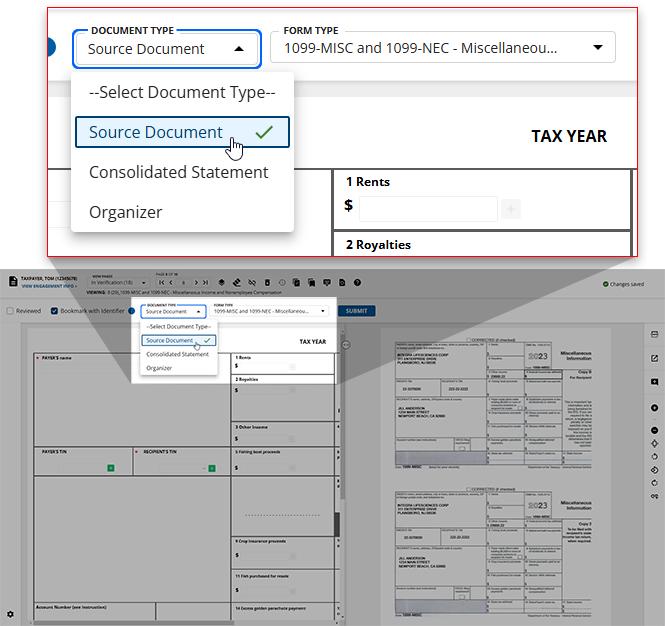
These should be presented as integrated products, not as functions included in every base UltraTax CS installation.
What Does an Efficient UltraTax CS Workflow Look Like?
A well-configured CPA workflow could look like this:
1. Roll forward the client
Use Proforma to create the current-year client structure and prior-year comparison points.
2. Collect and organize documents
Use the firm’s portal, document management system, or SurePrep workflow to gather and organize source files.
3. Select the correct data path
- Use SDE for supported individual source forms.
- Use Data Sharing for related UltraTax CS returns.
- Use Accounting CS or Workpapers CS for tax-coded trial balances.
- Use Fixed Assets CS for detailed depreciation records.
- Use Excel imports for structured statement data.
- Enter unsupported or judgment-dependent information directly.
4. Review imports before relying on them
Confirm identifiers, tax codes, units, mappings, imported fields, and overwritten values.
5. Complete technical tax review
Use prior-year views, diagnostics, tickmarks, notes, form previews, and supporting statements.
6. Manage return status
Log preparation, review, signature, e-file, and acceptance events.
7. Complete delivery
Use the appropriate e-file, electronic signature, portal, or integrated delivery workflow.
The value comes from using the right automation for each type of information, rather than pushing every document through one process.
Can UltraTax CS Workflows Be Used in the Cloud?
Yes. Hosting does not replace or modify UltraTax CS automation. It provides a managed environment from which authorized team members can use their licensed UltraTax CS and related applications.
For a CPA firm, a unified UltraTax Hosting can place UltraTax CS, Accounting CS, Fixed Assets CS, Practice CS, Microsoft applications, and permitted add-ons in the same Thomson Reueters managed cloud desktop. That can support remote access, shared data paths, centralized application management, and collaboration among preparers and reviewers.
The hosting provider must understand the dependencies between CS Professional Suite applications before hosting. Incorrect data paths, permissions, installation locations, or split local and hosted deployments can interfere with certain integrations. Thomson Reuters notes, for example, that some Accounting CS integration options may not be available when one application is hosted in its environment and the other remains local.
OneUp Networks helps CPA firms migrate and host their licensed UltraTax CS and related business applications in a managed cloud environment. OneUp Networks does not provide Thomson Reuters software licenses. Clients retain or purchase their application licenses from the original software vendor.
Frequently Asked Questions:
No. It reduces repetitive entry through proforma, SDE, data sharing, tax-coded imports, spreadsheet imports, and integrations. Preparers must still review source documents, mappings, tax treatment, exceptions, and final calculations.
No. QuickBooks data generally flows through Accounting CS before being imported into UltraTax CS. Excel can also be used for supported import workflows.
No. SDE provides simplified form-entry screens, but a user enters the source-document values. SurePrep 1040SCAN is the separate scan-and-populate workflow.
Yes. Data Sharing can transfer supported K-1 information when the originating and receiving clients are configured correctly. The originating return normally needs to be printed or print-previewed before the updated sharing information becomes available.
It can identify fields where prior-year data existed but current-year data has not been entered. It also provides critical and e-file-related diagnostics, but those diagnostics do not replace a professional tax review.
No. The UltraTax CS feature set is determined by Thomson Reuters and the firm’s licenses. Hosting provides the infrastructure used to access and manage those licensed applications.
Use the Same UltraTax CS Workflow From a Managed Cloud Desktop
UltraTax CS becomes more useful when preparers, reviewers, and related applications can work within a properly configured, centrally managed environment. OneUp Networks helps CPA firms migrate and host licensed Thomson Reuters applications while managing the servers, security, updates, backups, technical environment, and application access.
Read Also: