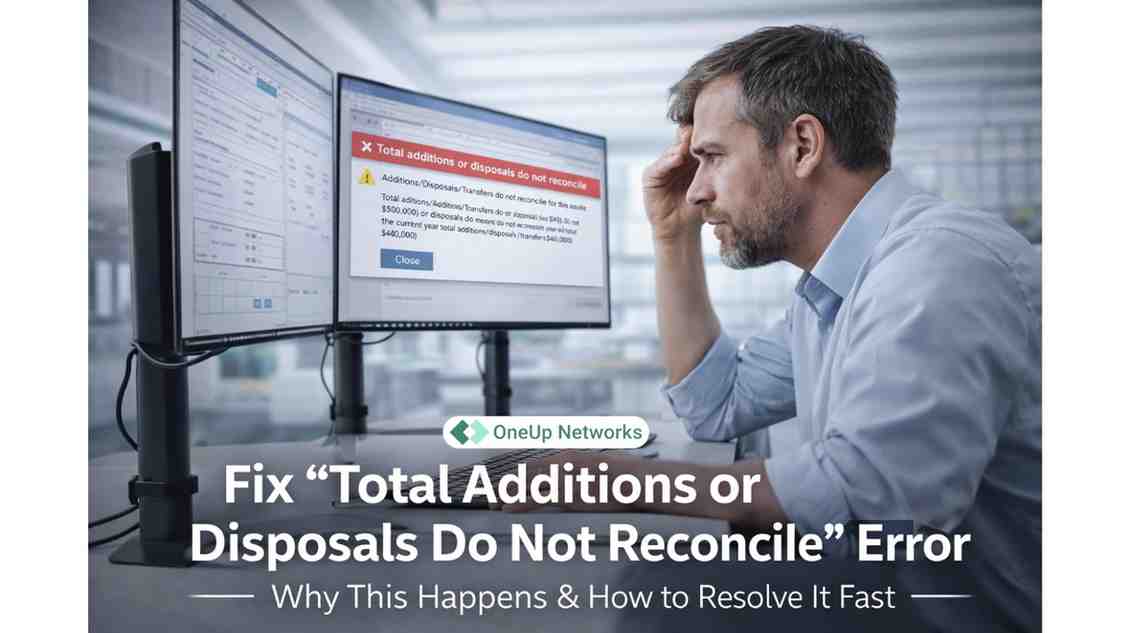
During corporation tax preparation, certain errors appear not because something is fundamentally broken—but because underlying data does not align. One of the more common examples is the message:
“Total additions or disposals do not reconcile.”
At first glance, the wording feels technical. In practice, it points to a simple issue: the numbers recorded in different parts of the system are not matching as expected. Understanding why this happens—and how to fix it correctly—requires looking at how capital allowances and asset movements are recorded inside tax software such as Digita Corporation Tax.
What Does “Total Additions or Disposals Do Not Reconcile” Error Mean?
This error occurs when the total value of asset additions or disposals does not match across related schedules or computations.
In corporation tax workflows, asset data is typically recorded in multiple places:
- fixed asset register
- capital allowances computation
- tax adjustment schedules
If the totals in these sections do not align, the system flags a reconciliation error.
In simple terms: The software is telling you that two connected numbers should match—but don’t.
Why This Error Happens (Root Causes)
The error is rarely random. It usually comes from one of a few structural issues.
1. Incomplete Asset Entries
An asset may be added in one section but not fully recorded in another.
For example:
- recorded in fixed assets
- missing in capital allowances
This creates a mismatch in totals.
2. Disposal Not Reflected Everywhere
When an asset is sold or removed, the disposal must be reflected consistently.
A common situation:
- disposal recorded in accounts
- not updated in tax computation
This causes the disposal total to differ.
3. Manual Adjustments Breaking Alignment
Manual edits—especially during last-minute corrections—can override system-linked values.
This often leads to:
- one schedule updated
- another left unchanged
The system then detects inconsistency.
4. Opening Balance Issues
If prior-year data was incorrect or partially imported, the current year totals may not reconcile properly.
This is especially common when:
- migrating data
- importing from external systems
5. Timing Differences
Sometimes entries are recorded in different periods unintentionally.
For example:
- asset added late in accounts
- reflected earlier or later in tax computation
Even small timing gaps can trigger reconciliation errors.
Where the Error Typically Appears
This error is most commonly seen in:
- capital allowances computation screens
- asset movement summaries
- validation or error-check panels before submission
It often appears during final review—when the system performs internal consistency checks.
How to Fix the Total Additions or Disposals Do Not Reconcile Error (Step-by-Step Approach)
The goal is not just to remove the error—but to ensure the data is genuinely correct.
Step 1: Compare Totals Across Sections
Start by checking:
- total additions
- total disposals
across all related schedules. Identify where the mismatch begins.
Step 2: Trace Individual Entries
Once totals differ, drill down into line items.
Look for:
- missing entries
- duplicated entries
- incorrect values
The issue is usually at the transaction level.
Step 3: Review Disposal Treatment
Check whether disposals are:
- fully recorded
- correctly classified
- reflected in capital allowances
Disposals are a frequent source of mismatch.
Step 4: Check Manual Overrides
Look for fields that were manually edited.
If found:
- confirm whether override is necessary
- align other sections accordingly
Step 5: Validate Opening Balances
If the mismatch persists, review:
- prior-year closing values
- current-year opening balances
Errors often originate earlier than expected.
Where Real Issues Arise (Practical Friction)
On paper, reconciliation is straightforward. In practice, problems arise because:
- system stability
- last-minute adjustments are made under time pressure
- imported data is assumed correct without verification
This is why the error often appears late—during final validation—rather than when the issue was created.
Example Scenario
A company adds new equipment worth £50,000.
- The asset is recorded in the fixed asset register
- Only £45,000 is entered in capital allowances
The system compares totals and flags: “Total additions do not reconcile” The error is not about complexity—it is about inconsistency.
How to Prevent This Error in Future
Prevention is largely about discipline and consistency.
Key practices include:
- entering asset data in all linked schedules at the same time
- avoiding unnecessary manual overrides
- reviewing disposals immediately when recorded
- validating totals monthly instead of at year-end
Reconciliation should not be left to final submission.
Frequently Asked Questions (FAQs)
It indicates that totals for additions or disposals do not match across related tax schedules.
No. It is a data consistency issue, not a formula problem.
No. It should be resolved before submission to ensure accurate tax computation.
Potentially yes. Incorrect asset data can impact capital allowances and taxable profit.
Final Perspective
The “total additions or disposals do not reconcile” error is not a software problem—it is a visibility problem. It highlights gaps between related data points that should align but do not. Firms that treat reconciliation as a continuous process rarely encounter this issue late in the workflow. Those that rely on end-stage validation often face it under deadline pressure. The difference is not technical skill—it is process discipline.
Support Stable Tax Workflows with OneUp Networks
Tax software performance, data access, and system stability directly impact how efficiently errors are identified and resolved. OneUp Networks helps accounting firms maintain consistent, secure environments designed for real tax workflows.
- reliable system performance during peak filing
- secure access for distributed teams
- infrastructure aligned with accounting applications
Book a Demo – Evaluate your current setup
Request a Quote – Get tailored recommendations
Talk to an Expert – Discuss your workflow challenge
You May Also Like These Articles:
- Thomson Reuters Fixed Assets CS Hosting
- The Complete QuickBooks Tax Season Optimization Guide for CPA Firms
- What is a Written Information Security Program (WISP)?
- Bundled Hosting vs. Separate Providers: Which Costs Less for Accounting Firms in 2025?
- Stop Manual Data Entry! How UltraTax CS Simplifies Tax Work for Accountants