- UltraTax CS includes built-in tools for backing up and restoring selected client data, documents, and application settings. OneUp Networks adds another level of protection by hosting UltraTax CS in a managed cloud environment with daily automated backups and 120-day rolling retention.
- This longer retention window gives CPA firms more opportunities to recover an earlier version when data loss, corruption, ransomware, or an unnoticed error is not discovered immediately.
Running a backup is easy. Recovering the right version of an UltraTax CS return three weeks after something went wrong is the harder part.
That is where backup retention matters. OneUp Networks provides hosted UltraTax CS firms with 120-day rolling backups, giving them access to approximately four months of recovery points instead of relying only on the latest copy. The managed environment also uses onsite and geographically separate offsite backup locations to add protection against accidental deletion, file corruption, ransomware, server failure, and problems discovered weeks later.
This guide explains how Thomson Reuters UltraTax CS backup and restore works, what application-level backups include, how to test a restoration, and how OneUp Networks adds a broader cloud recovery layer around your firm’s tax software.
What Can You Back Up in UltraTax CS?
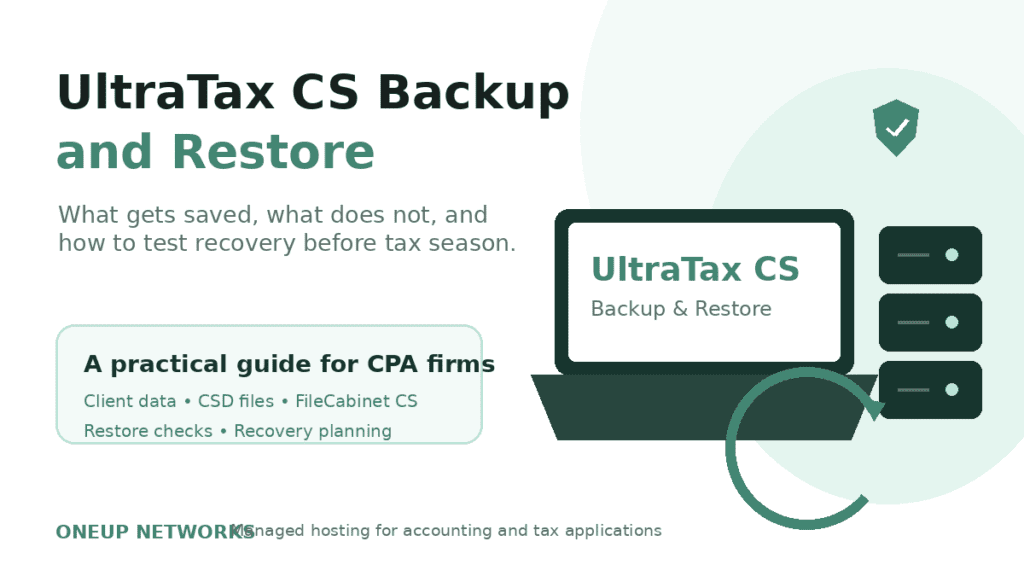
An UltraTax CS backup can contain more than a completed tax return. The built-in Backup tool lets firms select different types of application data.
| Backup category | Examples of what it may contain |
|---|---|
| Clients | Client returns and related data |
| Documents | Elections, transmittal letters, filing instructions and invoices |
| System settings | Preparer, reviewer and staff information |
| Product settings | Custom statements, invoice pricing and setup options |
| Data Mining | Custom searches, reports and letters |
These items should not automatically be treated as one backup set. A client return backup, for example, does not necessarily include every customized document or office-level setting your firm would need after moving to another server.
How Do You Create a Manual Thomson Reuters UltraTax CS Backup?
A manual backup is useful before a major change, such as importing data, moving to a new server, installing updates, restoring an older return, or making extensive changes to a complex client file.
To create one:
- Open UltraTax CS.
- Select File > Backup.
- Choose Clients, Documents, System settings, Product settings, or Data Mining.
- Select the clients or items you want to protect.
- Confirm the backup location.
- Select Backup.
- Confirm that the process finishes successfully.
UltraTax CS by Thomson Reuters allows the backup destination to be changed when the current drive or folder is not appropriate. Firms using FileCabinet CS can select it as the destination, after which a successful backup creates a Data Backup folder in the relevant drawer.
When should you create a manual backup?
Consider creating one before:
- Importing or converting client information
- Installing a major application update
- Moving UltraTax CS to another computer or server
- Restoring an older version of a return
- Making substantial changes to a high-value return
- Sending client data to another authorized UltraTax CS user
- Changing application or office-level settings
The purpose is simple: give the preparer a known recovery point before making a change that may be difficult to reverse.
Can UltraTax CS Back Up Clients Automatically?
Yes, but this capability depends on FileCabinet CS.
When FileCabinet CS is licensed and integrated, UltraTax CS can automatically back up client data when a return is closed or after prior-year client information is proformaed.
The setting is available under:
Setup > Office Configuration > FileCabinet CS > Automatically back up client data to FileCabinet CS
Thomson Reuters states that the default configuration allows a maximum of three FileCabinet CS backups per client and a maximum of one automatic backup per day. Firms should review these settings instead of assuming a new recovery point is created after every edit or save.
Does closing a return always create a backup?
No. The automatic FileCabinet CS option must be licensed, configured, and enabled. If the checkbox is not selected, closing a return does not create this automatic backup.
That is an important distinction during tax season, when several people may assume another system is already protecting the file.
How Do You Restore UltraTax CS Client Data?
To restore a standard Thomson Reuters UltraTax backup:
- Open the correct tax-year version of UltraTax CS.
- Select File > Restore.
- Choose the correct data location when more than one is available.
- Select the type of item being restored.
- Change the backup location if UltraTax is looking in the wrong folder.
- Select the required client or item.
- Select Restore.
- Review the restored information before continuing work.
When restoring from FileCabinet CS, select either Clients with backups in FileCabinet CS or System backups in FileCabinet CS. Thomson Reuters notes that FileCabinet CS restoration allows one client to be selected at a time.
What should you check before selecting Restore?
Confirm all of the following:
- Client ID
- Tax year
- Backup creation date
- Backup location
- Target data location
- Whether the current return contains newer work
- Whether another preparer is working in the return
- Whether the current version should be backed up first
If the same client already exists in the selected UltraTax data location, restoring a CSD file may replace the existing client information.
Practical rule: Back up the current return before restoring an older copy. That gives the firm a way back if the wrong recovery point is selected.
What Is an UltraTax CS CSD File?
A CSD file is a Creative Solutions Data file used to transfer or restore client data in UltraTax CS and Fixed Assets CS.
The receiving computer must have the appropriate CS application installed. The application year must also match the year that created the backup. For example, a CSD file created in a specific UltraTax CS tax year should be restored through that same tax-year application.
CSD files can be created when client data is sent to an email recipient or exported to a file location. UltraTax CS also provides an option to password-protect the client information during that process.
Is a CSD file a complete server backup?
No. A CSD file is designed for CS application data. It should not be confused with an image of the entire server, operating system, user profile, printer configuration, security environment, or every integrated application used by the firm.
Why Is My UltraTax Backup Not Showing in the Restore Window?
A missing client in the Restore window does not necessarily mean that the backup has been deleted.
Check these issues first.
1. You selected the client folder instead of the main backup folder
Suppose the backup is stored under: C:\Tax Backups\Client123
When changing the backup location, select: C:\Tax Backups
Do not browse directly into the client-specific subfolder. UltraTax CS expects the parent backup location.
2. You opened the wrong UltraTax CS year
Confirm that the backup belongs to the tax-year application currently open. A client backup may not appear when the wrong year is being used.
3. The file is on read-only media
Backups stored on a CD or another read-only location may need to be copied to a local drive. Check the folder permissions before attempting the restore again.
4. The USB drive or network location is not accessible
Copy the backup to a local folder and verify that the user has permission to open it.
5. The backup needs to be tested on another computer
Thomson Reuters includes trying another computer among its troubleshooting recommendations when the client cannot be found.
How Do You Test an UltraTax CS Restore Before Tax Season?
The safest time to test a restoration is when no filing deadline is at risk.
Use this controlled process:
- Choose a non-active test client.
- Create a new backup.
- Record the client ID, tax year, time and storage location.
- Restore the backup into an approved test location.
- Open the restored return.
- Review important federal and state inputs.
- Confirm that expected documents and notes are available.
- Verify that the appropriate staff members can access the file.
- Record how long the restoration took.
- Document any missing data, permission problem or incorrect path.
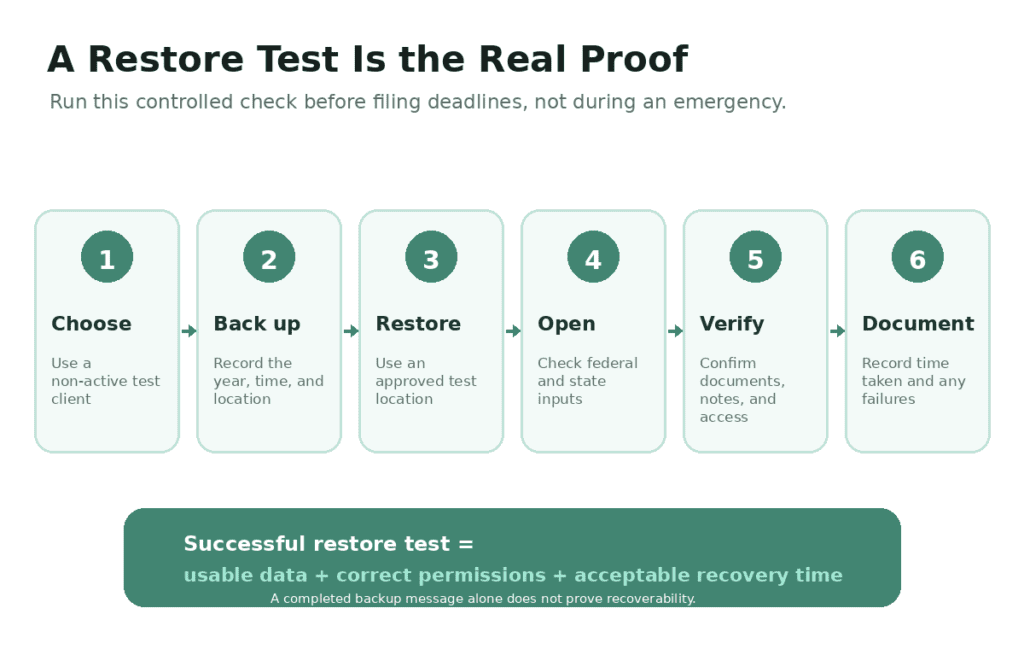
A successful restore test answers three questions:
- Is the restored information usable?
- Can the correct people access it?
- Can the firm recover it within an acceptable time?
A “backup completed successfully” message answers none of those questions by itself.
Is an UltraTax CS Backup the Same as Disaster Recovery?
No. They solve different problems.
| UltraTax CS application backup | Full environment recovery |
|---|---|
| Recovers a selected client or application item | Recovers the wider working environment |
| Useful after accidental edits or file corruption | Useful after server failure, ransomware or a site outage |
| May contain client data, documents or settings | May include servers, applications, permissions and configurations |
| Restored through UltraTax CS | Restored through infrastructure-level recovery tools |
| Normally addresses a specific file or application issue | Addresses broader operational interruption |
An application backup may help when a preparer overwrites a return. It will not necessarily rebuild the server, reinstall integrated applications, restore Windows permissions, reconnect printers, or recover other CS Professional Suite components.
That is why firms should maintain both application-level backups and a wider infrastructure recovery plan.
What Should an UltraTax CS Backup Checklist Include?
Before busy season, confirm that your firm can answer each question below.
- What UltraTax CS data is included in the backup?
- Are documents and office settings backed up separately?
- Is FileCabinet CS automatic backup enabled?
- How many client versions are retained?
- Where are the backups stored?
- Is at least one copy isolated from the primary server?
- Who is authorized to perform a restore?
- Has a client return been restored successfully?
- How long did the test restore take?
- What happens if the main server is unavailable?
- Are older UltraTax CS tax-year applications available when needed?
- Is the restore process documented for someone other than the primary administrator?
A backup process should not depend entirely on one employee remembering a drive path during an emergency.
Why Does 120-Day Rolling Backup Retention Matter for CPA Firms?
Data problems are not always noticed on the day they occur.
A preparer may overwrite information in January, but the issue might not be discovered until the return reaches final review in February. A corrupted file may continue opening until a later update exposes the problem. Ransomware may also remain unnoticed before files are encrypted or recovery becomes necessary.
A short retention period can leave the firm with several copies of the same damaged or incomplete data. With 120-day rolling backup retention, OneUp Networks maintains approximately four months of recovery points for hosted environments. This gives the support team a wider recovery window when the most recent backup is not the version the firm actually needs.
What does the 120-day backup window help protect against?
It can provide additional recovery options after:
- Accidental file deletion
- An incorrect client-data import
- Information being overwritten
- File corruption discovered during review
- Ransomware affecting recent copies
- An application or server problem
- A mistake that remains unnoticed for several weeks
The important benefit is not simply having more backups. It is having more historical restore points from which the appropriate version may be recovered.
Does the 120-day backup replace UltraTax CS client backups?
No. The two backup methods protect different parts of the workflow.
UltraTax CS client backups help restore selected returns, documents, and application settings. OneUp Networks’ managed backups protect the wider hosted environment where UltraTax CS and the firm’s other licensed applications operate.
Using both gives the firm client-level recovery and infrastructure-level recovery instead of depending on one backup method.
How Does Managed UltraTax CS Hosting Add Another Recovery Layer?
OneUp Networks hosts client-owned UltraTax CS licenses in managed environments designed for accounting and tax applications. The UltraTax hosting environment includes daily automated backups, 120-day rolling retention, onsite and offsite backup copies, disaster-recovery planning, and stated recovery objectives of two to four hours for RPO and three to four hours for RTO.
Thomson Reuters Hosting infrastructure layer does not make UltraTax CS client-level backups unnecessary. It supports them by protecting the wider environment around the application.
That means a firm can use:
- Thomson Reuters UltraTax CS backups for a selected client or application item
- FileCabinet CS backups for integrated client-level recovery
- Managed server backups for broader system recovery
- Offsite copies for failures affecting the primary location
- Disaster-recovery infrastructure for a major operational interruption
The strongest approach is layered, not dependent on one file or one storage location.
Frequently Asked Questions
No. With FileCabinet CS, automatic backups can be configured when a return is closed or after client data is proformaed. This is different from creating a backup after every individual save.
Yes. UltraTax CS supports client-level restoration. When restoring from FileCabinet CS, only one client can be selected at a time
The restoring system needs the same application and tax year used to create the CSD backup.
Yes. UltraTax CS supports client-level restoration. When restoring from FileCabinet CS, only one client can be selected at a time.
It can. When the same client already exists in the current data location, UltraTax CS warns that the existing client data will be replaced. Back up the active return before continuing.
No. It protects selected UltraTax application data. Recovering the full server, integrated applications, permissions and working environment requires a broader infrastructure backup and disaster-recovery process.
Give Your UltraTax CS Data a Longer Recovery Window
Your firm should not lose access to an earlier return simply because an error was discovered after a short backup period expired.
OneUp Networks hosts your licensed UltraTax CS application in a fully managed cloud environment with 120-day rolling backup retention, onsite and offsite backup copies, disaster-recovery planning, server management, and technical support built for accounting and tax workloads.
Related Blogs: