Is your QuickBooks Desktop suddenly refusing to switch to multi-user mode? Are you facing the frustrating “Hosting Mode is Off” error that disrupts collaboration in your accounting firm or finance department? Losing the ability to host company files in multi-user mode can stall your work, diminish productivity, and create headaches for teams relying on simultaneous access. This comprehensive guide will walk accountants, CPAs, tax professionals, and finance experts through diagnosing why the QuickBooks hosting mode turns off, and provide authoritative, step-by-step solutions to enable hosting mode and fix related issues, ensuring seamless multi-user access.
What is Hosting Mode in QuickBooks?
Hosting mode allows one computer, typically a server, to host the QuickBooks company file so that multiple users on a network can access and work on the file simultaneously. This mode is vital for accounting teams requiring real-time collaboration, eliminating version conflicts and streamlining workflows.
Why Does Hosting Mode Turn Off?
When hosting mode is off, only one user can open the company file at a time, effectively locking others out. Common reasons include:
- Incorrect hosting configuration (e.g., hosting enabled on multiple workstations)
- Network or firewall restrictions blocking QuickBooks services
- Corrupted or missing QuickBooks database files (.ND files)
- Improper folder permissions or sharing configurations on the server
- Issues with QuickBooks Database Server Manager or related services not running
- Antivirus or Windows Firewall blocking QuickBooks connections
- Version mismatches or incomplete QuickBooks installation
Understanding these causes is key to effective troubleshooting and sustained multi-user access.
QuickBooks Hosting Mode Off? Here’s How to Fix It
1. Verify Hosting Settings on All Workstations
- Open QuickBooks on each computer.
- Navigate to File > Utilities.
- If you see Host Multi-User Access, enable it only on the designated server PC.
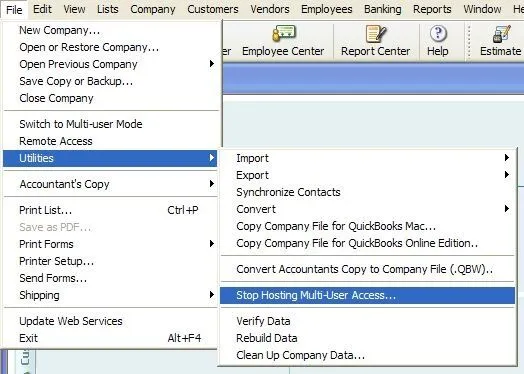
- On workstations, select Stop Hosting Multi-User Access to prevent conflicts.
- Ensure hosting is enabled only on one system, typically the server.
2. Ensure QuickBooks Database Server Manager is Running
- Open Services (Windows key + R, type services.msc).
- Locate QuickBooksDBXX (XX = year version) service.
- Set Startup type to Automatic and start the service if not running.
- Repeat this for QBCFMonitorService.
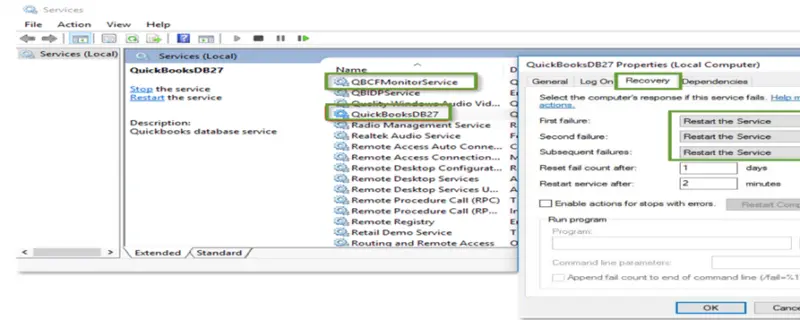
- This service manages company file sharing across the network.
3. Scan Company File Folder with QuickBooks Database Server Manager
- Open QuickBooks Database Server Manager on the hosting PC.
- Go to Scan Folders tab.
- Add the folder containing your company file.
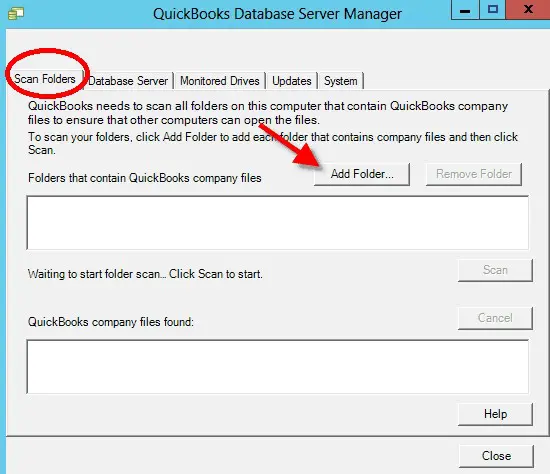
- Click Start Scan to refresh folder permissions and file accessibility.
4. Configure Firewall and Security Settings
- Open Windows Firewall.
- Create inbound and outbound rules to allow QuickBooks services through firewall ports:
- Default ports for recent versions: 8019, 56728, 55378–55382 (check version specifics).
- Add QuickBooks executable files to firewall exceptions.
- Disable antivirus or add exceptions for QuickBooks processes if necessary.
5. Check Folder Permissions and Sharing Settings
- On the server, ensure the folder containing the company file is shared.
- Right-click folder > Properties > Sharing > Advanced Sharing > Share this folder.
- Assign Full Control to the user groups: Everyone or specific QuickBooks users.
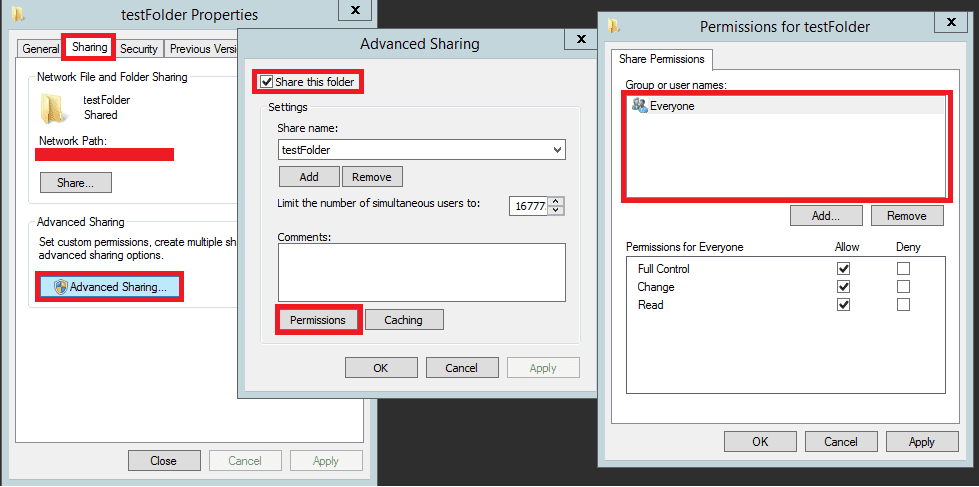
- Under Security tab, verify folder permissions grant Full Control to relevant users.
6. Repair or Reinstall QuickBooks and Its Components
- Use the QuickBooks Tool Hub to run:
- Quick Fix My Program
- QuickBooks Program Diagnostic Tool
- Repair damaged QuickBooks installations or perform clean reinstall if needed.
7. Resolve .ND File and Network Issues
- Rename the .ND file associated with the company file by adding .OLD.
- Restart QuickBooks; the software will create a new .ND file.
- Use ping commands and UNC paths to verify server access and connectivity.
Industry Insights & Facts
- According to recent studies, improper hosting setup and firewall conflicts are the top causes of multi-user hosting failures in QuickBooks, affecting accounting firms significantly.
- QBES Cloud hosting solutions for accountants improve access control and collaboration, offering secure, scalable file hosting beyond on-premise servers.
- Proper configuration of network discovery and file sharing permissions is essential to unlock full multi-user benefits and avoid costly workflow disruptions.
- Experts recommend maintaining the Database Server Manager version aligned with your QuickBooks Desktop release to prevent errors and ensure seamless file hosting.
QuickBooks Hosting Mode Off : Causes vs. Solutions
| Common Causes | Solutions |
|---|---|
| Hosting enabled on multiple workstations | Enable hosting only on the server; disable on other PCs |
| Database Server Manager service stopped | Set service to Automatic and start it |
| Firewall blocking QuickBooks ports | Add inbound/outbound firewall rules for ports and executables |
| Folder permissions insufficient | Share folder with Full Control permissions |
| Corrupt .ND file | Rename .ND file to force rebuild |
| Antivirus interference | Add antivirus exclusions or temporarily disable antivirus |
| Improper network discovery settings | Enable network discovery and file sharing on server and clients |
Firewall Ports by QuickBooks Version for Hosting Mode
| QuickBooks Version | Required Firewall TCP Ports |
|---|---|
| 2020 and later | 8019, dynamic assigned ports |
| 2019 | 8019, dynamic assigned ports |
| 2018 | 8019, 56728, 55378-55382 |
| 2017 | 8019, 56727, 55373-55377 |
FAQs on QuickBooks Hosting Mode Off Error
It means the company file hosting for multi-user access is disabled or improperly configured, allowing only one user access at a time.
Open QuickBooks on the server > File > Utilities > Host Multi-User Access.
Possible reasons include firewall blocking ports, database server service not running, or incorrect folder permissions.
No, only one system should host to prevent conflicts; others must have hosting disabled.
Yes, antivirus can block QuickBooks connections; configure exclusions or firewall rules accordingly.
Conclusion
QuickBooks “Hosting Mode Off” errors can sideline productivity and create costly bottlenecks, especially for accounting firms and finance professionals who rely on multi-user access for collaboration. By understanding the causes, applying the expert fixes provided, and leveraging toolkits like the QuickBooks Database Server Manager and Tool Hub, you can ensure your workflow is resilient, secure, and always available. Mastering multi-user hosting not only prevents downtime but enables your team to unlock full efficiencies from QuickBooks, whether on-premise or harnessed through robust cloud hosting.
Ready to end QuickBooks hosting hassles? With OneUp Networks, accountants and finance teams can enjoy secure, multi-user QuickBooks cloud hosting, 24/7 support, and seamless collaboration. Try it risk-free with a 15-day free trial, or contact us for expert help tailored to your needs.
Also Read These Helpful Blogs: