When to Use WeTransfer File Sharing?
WeTransfer is ideal when:
- You need to send large files quickly
- Email attachments fail due to size limits
- Temporary file sharing is sufficient
- No advanced permissions or long-term storage is required
Step 1: Open WeTransfer
Go to the WeTransfer website using any modern web browser for large file transfer.
Step 2: Add Your Files
- Click on Add your files
- Select one or multiple files or folders from your computer
- Wait for the files to finish uploading
Step 3: Choose How You Want to Share
You can send files via We Transfer in two ways:
Option 1: Email Transfer
- Enter the recipient’s email address
- Enter your email address
- Add an optional message
Option 2: Link Transfer
- Generate a download link
- Copy and share the link via chat, email, or CRM tools
Step 4: Send or Share the Files
- Click Transfer (for email sharing) or Copy link (for link sharing)
- Files will be available for download until the expiry date
Best Practices to Avoid Issues
- Check file size limits before uploading
- Use link sharing for multiple recipients
- Inform recipients to download files before link expiry
- Ensure stable internet during upload
- Avoid refreshing or closing the browser while uploading
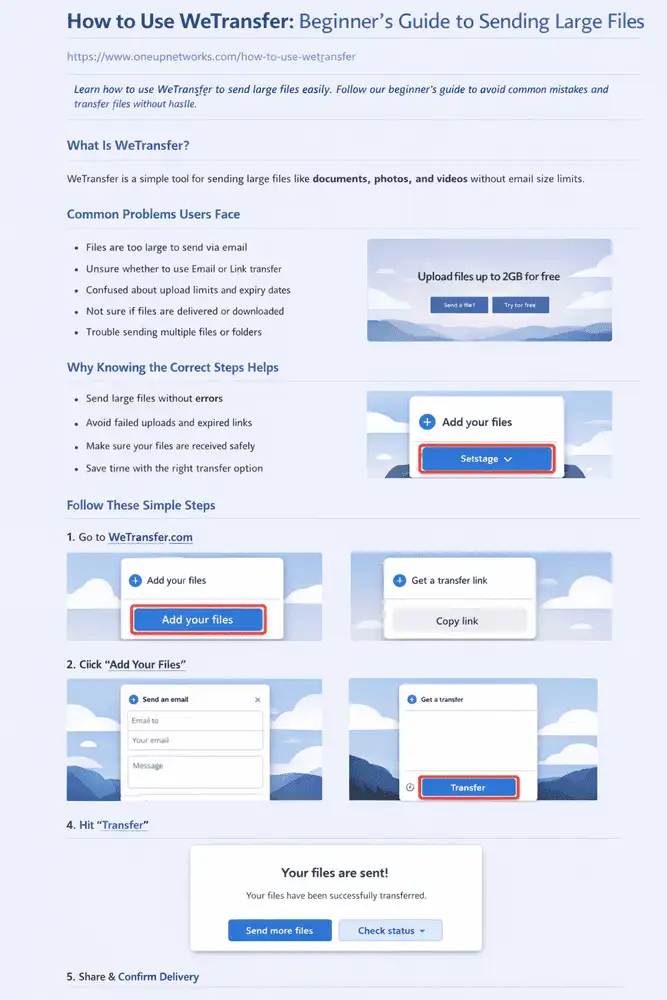
WeTransfer file sharing guide is an easy and reliable way to send large files without technical complexity. Knowing the correct steps ensures smooth uploads, successful deliveries, and a better experience for both sender and recipient.
Need help with secure cloud file sharing for business or accounting workflows? Explore OneUp Networks’ managed cloud solutions for reliable and compliant data handling.