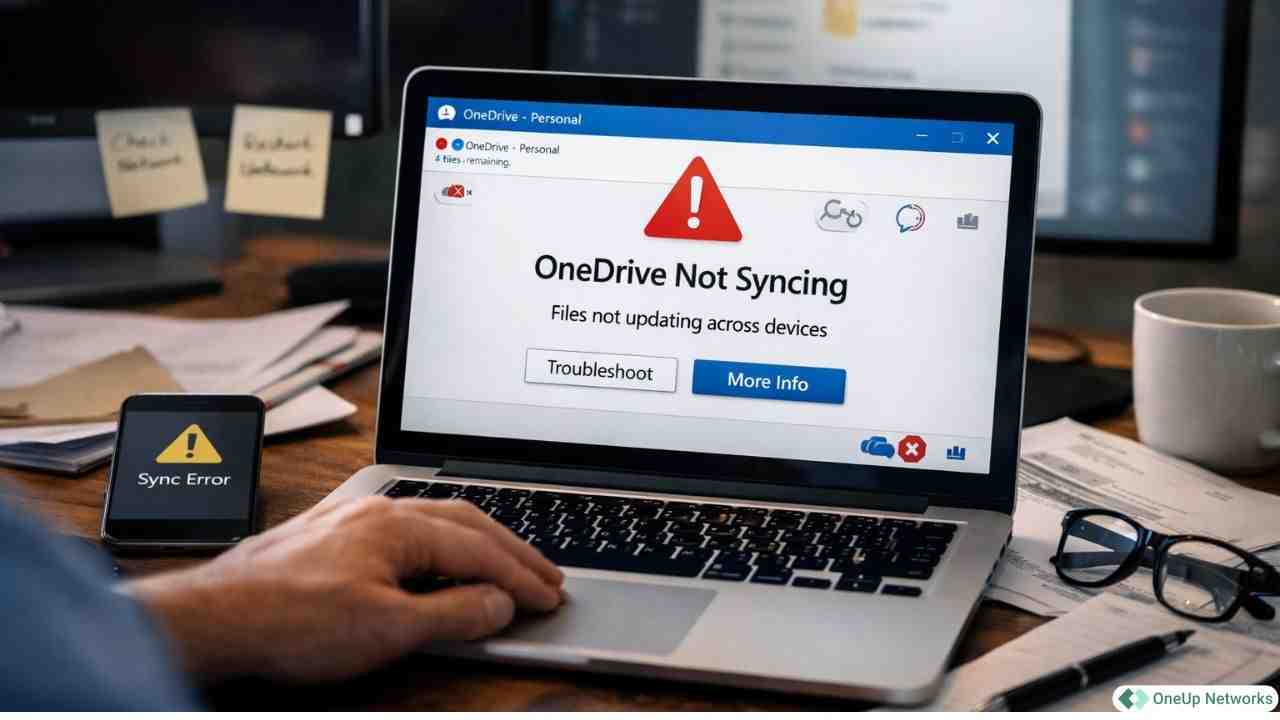
If OneDrive is not syncing, you usually notice it quickly. Files don’t update, changes don’t show up on other devices, or something just feels out of date. What makes it frustrating is not the problem itself—it’s the lack of clarity. Sometimes there’s an error, sometimes there isn’t, and you’re left guessing what went wrong.
In reality, most OneDrive sync issues are not random. They follow clear patterns. Once you recognise those patterns, fixing the problem becomes much easier. In most cases, the issue comes down to one of three things: your account, your connection, or the file itself.
What Does “OneDrive Not Syncing” Mean?
When OneDrive works properly, it keeps your files consistent between your device and the cloud. When it doesn’t, that connection breaks—and the signs are usually subtle at first.
You might see files not syncing, changes not appearing on another device, or items stuck in a syncing state. Sometimes only certain files are affected, which makes the issue feel inconsistent. That inconsistency is useful. It tells you OneDrive is still running—but something in the process is failing.
Quick Diagnosis (Find Your Issue Fast)
Instead of trying multiple fixes, start here:
| If this is happening | Most likely cause | What to do |
|---|---|---|
| Nothing is syncing | Account/session issue | Sign out and sign back in |
| Files stuck on syncing | Network instability | Restart OneDrive + check internet |
| Only some files fail | File/path issue | Rename or move file |
| Folder won’t sync | Permission issue | Re-link OneDrive |
This gives you a starting point based on what you’re actually seeing.
Start Here First (Quick Fixes)
Before going deeper, it’s worth checking the basics. These aren’t guesses—they solve more issues than people expect.
- Restart OneDrive
- Make sure syncing isn’t paused
- Check your internet connection
- Confirm your storage isn’t full
- Sign out and sign back in
If the issue appeared recently, one of these often clears it quickly. If not, the pattern of the problem matters more than the steps.
What the OneDrive Icons Are Telling You
Sometimes the quickest clue is visual.
| Icon | Meaning |
|---|---|
| Blue cloud | File is online only |
| Green checkmark | File is fully synced |
| Sync arrows | File is currently syncing |
| Red X | Sync error |
If the icon doesn’t change for a long time, the sync process may be stalled—even without a clear message.
When Nothing Syncs (But No Error Shows)
This is one of the more confusing situations. Everything looks normal, but nothing actually updates. In most cases, this points to an account issue. OneDrive depends on an active session, and when that session breaks, the app may continue running without syncing anything. This is especially common after Windows 11 updates or long sessions where authentication quietly expires.
Fix:
- Sign out of OneDrive
- Sign back in
This refreshes your connection and restores syncing.
When Files Are Stuck on “Syncing”
If files sit in a syncing state without finishing, the issue is usually your connection. It doesn’t have to be completely offline. Even small interruptions—like unstable Wi-Fi or VPN interference—can prevent uploads from completing.
Common causes
- Weak or unstable network
- VPN interference
- Interrupted uploads
Fix:
- Restart OneDrive
- Pause and resume syncing
- Switch to a stable connection
This resets the transfer process so uploads can complete properly.
When Only Some Files Won’t Sync
If only certain files are affected, OneDrive itself is working. The issue is with the file.
Over time, a few patterns appear:
- Very long folder paths can exceed limits
- File names with unsupported characters may fail
- Conflicts between versions can block syncing
Key limits to remember
- Path length: ~400 characters
- Maximum file size: up to 250 GB
- Large libraries (300,000+ files) can slow syncing
Fix:
- Rename the file
- Move it to a shorter path
- Resolve conflicts
Once the file meets OneDrive’s requirements, syncing usually resumes immediately.
“We Can’t Sync Your OneDrive Folder” Error
This error sounds serious, but it usually comes down to access. OneDrive needs permission to read and write to its folder. If something interrupts that—like a system change or account switch—syncing can stop completely.
Fix:
- Check folder permissions
- Re-link your account
- Rename or recreate the folder
This restores access and allows OneDrive to reconnect properly.
Latest OneDrive Sync Updates
OneDrive itself hasn’t changed dramatically, but a few updates affect behaviour.
- Sync is faster, but more sensitive to unstable networks
- Windows 11 updates may reset sync settings
- Files On-Demand is enabled by default
- Large libraries still impact performance
If your issue started after an update, it’s worth checking your configuration.
When OneDrive Keeps Breaking Repeatedly
If the same issue keeps returning, the problem is usually internal. In this case, restarting isn’t enough. OneDrive needs to rebuild its sync state.
Reset OneDrive
- Press
Win + R - Run:
%localappdata%\Microsoft\OneDrive\onedrive.exe /reset - Restart OneDrive
This clears cached data and restores normal syncing.
OneDrive Not Syncing on Remote Desktop or Windows Server
In Remote Desktop or Windows Server environments, syncing behaves differently. Here, OneDrive depends on how profiles and sessions are managed. If profiles don’t load correctly or sessions end too quickly, syncing becomes unreliable.
Common causes:
- FSLogix profile issues
- Session interruptions
- Storage limitations
When everything is set up properly, OneDrive usually works as expected. When it’s not, the same sync issues tend to come back again and again.
Why OneDrive Doesn’t Sync After Login
If OneDrive doesn’t sync right after login, it’s usually a timing issue. The app may start before the network or profile is fully ready. As a result, it runs—but doesn’t sync.
Fix:
- Delay OneDrive startup
- Ensure system is fully ready before launch
This allows OneDrive to start under the right conditions.
How to Prevent OneDrive Sync Issues
Most issues repeat because the same conditions remain. Keeping things simple reduces problems significantly.
- Keep OneDrive updated
- Monitor storage usage
- Avoid large bulk syncs
- Maintain a stable connection
Core Rule (Remember This)
Stable account + stable connection + clean file structure = reliable OneDrive syncing
FAQs
Because something in the sync process—account, connection, or file—is failing.
Start with basic checks, then match the fix to the problem pattern.
Usually OneDrive sync error due to file restrictions, long paths, or conflicts.
Updates can reset settings or delay startup.
Conclusion
When OneDrive sync error may feel unclear—but it usually isn’t. Whether nothing is syncing, files are stuck, or only certain files fail, the cause almost always comes down to your account, your connection, or the file itself.
Once you identify which one is responsible, the fix becomes straightforward. You stop trying different solutions and start fixing the right problem. Most sync issues don’t require complex steps—just the right diagnosis. And once you understand how OneDrive behaves, you’re not just solving this issue—you’re preventing the next one.
Ready to Improve Performance, Stability, and Reliability?
Most performance and sync issues aren’t caused by the application itself—they’re usually the result of underlying infrastructure, configuration, or environment limitations. OneUp Networks helps businesses evaluate their current setup, optimize performance, and deploy cloud environments built for reliability and scale.
- Book a Demo – See your applications running in a fully optimized cloud desktop environment with real-world workloads.
- Start a Free Trial – Test performance, multi-user access, and system responsiveness with no commitment.
- Request a Quote – Get a tailored hosting solution based on your users, applications, and workload requirements.
You May Also Like These Articles:
- How to Fix OneDrive Sync Issues on RDS Servers
- How to Install OneDrive on a Cloud Hosted Server (RDS / Windows Server)
- Best OneDrive Settings for Remote Desktop Environments
- How to Map OneDrive as a Network Drive on Cloud Servers
- QuickBooks Integration Solutions | Connect QuickBooks with 200+ Business Apps